
A Windows 365 alternative with shared hosted desktop is AccuWeb Hosting Virtual Desktop, designed for up to two users on one desktop. Explore the Virtual Desktop plans and pricing to choose resources for your office.
Instead of starting with a separate cloud PC for each employee, consider how two staff members will use shared files, applications, and remote sessions. The right choice depends on concurrent access, licensing, backup needs, and workload size.
Key Takeaways
- Virtual Desktop supports up to two users on one desktop, with private and shared folders.
- Standard ++, Professional ++, and Premium ++ offer three resource levels, from $24.99 to $96.99 per month on a 12-month term.
- Professional ++ is $48.99 per month, about $2.21 below two Windows 365 Business subscriptions, before session licensing.
- Active Directory integration and administrator access help offices manage accounts and applications.
- Weekly backup is included in Denver, New York, and London.
- Check the licensing needed for simultaneous staff sessions before choosing a deployment.
Windows 365 Alternative with Shared Hosted Desktop
AccuWeb Hosting Virtual Desktop gives a small office a hosted Windows environment for up to two users. Staff can work with private folders and shared folders on the same desktop environment.
This model fits an office that wants a common set of applications and files rather than separately managed cloud PCs. It also offers full administrative access through Remote Desktop Protocol, or RDP, the connection technology used to reach the hosted desktop.
Windows 365 Business uses a per-user Cloud PC model. For two employees, that normally means evaluating two user subscriptions. Windows 365 Flex also permits multiple people to access one Cloud PC, but its shared use is nonconcurrent.
Concurrent use matters. Two named users sharing access at different times is not the same as two employees working simultaneously. Windows Server distinguishes administrative RDP connections from a Remote Desktop Services session-host deployment for staff.
Remote Desktop Services users or devices need appropriate client access licenses, known as CALs. Include the required licensing in your design and total cost before deciding how simultaneous work will operate. Do not assume that two administrative connections alone establish a licensed staff deployment.
Choose a shared desktop when two staff need a common environment and your workload fits its resources. Choose separate cloud PCs when each employee needs an isolated machine or substantially different software.
The remote desktop glossary explains how a hosted Windows machine is accessed remotely.
Choose the Right Virtual Desktop Resources
Three Virtual Desktop plans give a small office a choice of memory and storage. Each includes licensed Windows Server 2019 and one IP address.
| Plan | RAM | vCPU | Storage | Bandwidth | Price |
| Standard ++ | 2 GB | 3 vCPU | 60 GB | 500 GB | $24.99/mo |
| Professional ++ | 4 GB | 4 vCPU | 100 GB | 1 TB | $48.99/mo |
| Premium ++ | 8 GB | 4 vCPU | 200 GB | 1 TB | $96.99/mo |
Prices shown for New York, USD, on a 12-month term billed upfront ($299.88, $587.88 and $1,163.88). Each plan renews at the same price. Last updated: November 2026.
Standard ++ is a starting point for a lighter workload. Professional ++ offers 4 GB of RAM for offices that need more room for open applications. Premium ++ doubles that memory and storage for a heavier shared workload.
Memory is shared by the operating system and the applications running on the desktop. When both staff members work at once, count the applications and browser tabs each person expects to keep open.
Storage also holds the operating system, software, private folders, and shared files. The Virtual Desktop feature comparison is useful when reviewing management and service features alongside the plan resources.
Compare Two-User Desktop Costs
Professional ++ is the resource match for this comparison because it has 4 GB of RAM, like the other configurations shown. The products use different desktop and licensing models, so the figures are not a complete equivalent-service comparison.
| Provider and plan | Memory and CPU | Storage | Published starting price | Two-user calculation |
| AccuWeb Hosting Virtual Desktop Professional ++ | 4 GB RAM, 4 vCPU | 100 GB | $48.99 per month, 12-month term, renews at the same price | $48.99 per month for up to two users, before any required session licensing |
| Windows 365 Business | 4 GB RAM, 2 vCPU | 64 GB | $25.60 per user per month, monthly subscription | $51.20 per month for two users |
| Apps4Rent Dedicated Virtual Desktop Silver | 4 GB RAM, 4 vCPU | 50 GB SSD | $42.95 per month, monthly, one user included | $64.95 per month for two users |
| flexidesktop Team S | 4 GB RAM, 2 vCPU | 60 GB SSD | $49 per desktop per month, monthly | $49 per month for up to two concurrent users |
AccuWeb is billed on a 12-month term; the other providers are billed monthly. Prices as published in November 2026.
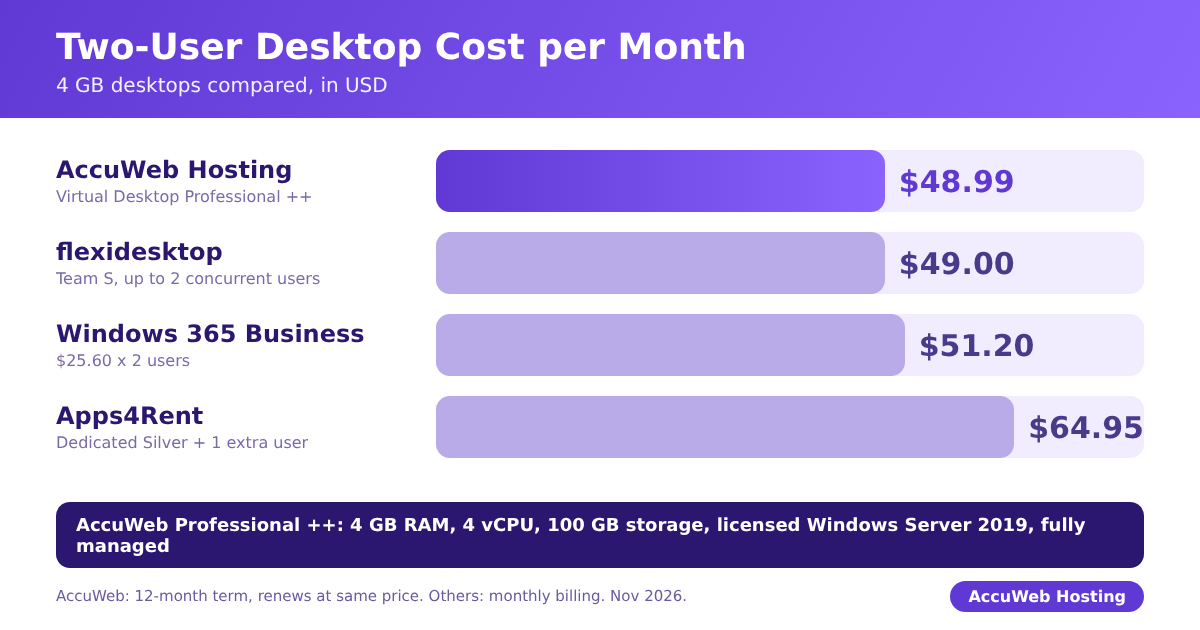
For a two-person example, AccuWeb Hosting Professional ++ costs $48.99 per month, or about $24.50 per user. Windows 365 Business costs $51.20 per month: $25.60 multiplied by two users. Apps4Rent Silver costs $64.95 per month: $42.95 plus $22 for the additional user. The flexidesktop desktop costs $49 per month, or $24.50 per concurrent user when both places are used.
On these figures, Professional ++ is $2.21 per month below Windows 365 Business for two users. That gap is small, and it excludes any Remote Desktop Services licensing for simultaneous staff sessions, so add your required licensing and backup arrangements before comparing a complete cost.
In Reddit discussions, Windows 365 users praise convenient provisioning and discuss performance or cost concerns. Apps4Rent reviewers on Trustpilot and G2 praise patient setup help; some also describe delays or difficulty with complex support requests. Those Apps4Rent reviews cover several products, not just virtual desktops.
Review Your Desktop Cost
Use Virtual Desktop pricing as the starting point for your office calculation.
Make Shared Storage Work for Two Staff
Private folders separate individual work, while shared folders give both staff members a common place for office files. Decide which files belong in each location before moving existing work.
Consider a Professional ++ desktop with 100 GB of storage. In this planning example, two private folders together use 20 GB, shared files use 40 GB, and the operating system and applications use 40 GB. The total is 20 + 40 + 40 = 100 GB.
This example fills the storage allocation. An office with that projected usage should leave room for growth rather than treating 100 GB as entirely available for documents. Premium ++ offers 200 GB of storage for a larger working set.
Permissions matter as much as capacity. A shared folder should give access only to staff who need its contents. Private folders should not become a substitute for a deliberate shared filing structure.
Also test how your applications handle a file opened by two users. A shared location does not automatically make every application suitable for simultaneous editing. Some workflows work better when each person edits a separate file or when staff coordinate access.
Connect Accounts and Protect Files
Virtual Desktop supports Active Directory integration for managing users, groups, and resources. Active Directory is a directory service that organizes accounts and access across a Windows environment.
For a two-person office, groups can make shared-folder permissions easier to manage than assigning every permission individually. Keep each employee’s account separate so access can be changed without sharing a password.
Separate Administration from Daily Work
Full administrative access through RDP gives an authorized administrator control over the hosted environment. Use that access for administrative tasks, rather than making shared administrator credentials the everyday sign-in for both employees.
Virtual Desktop also includes Windows Firewall and managed ClamWin antivirus. VPN support is available for an office that uses a virtual private network as part of its remote-access design. Printing and scanning features support common office workflows.
Choose a Recovery Routine
Weekly backup is included in Denver, New York, and London. A daily backup add-on is available for other locations. A backup schedule defines how often copies are made; it does not by itself tell you how much recent work an office can afford to lose.
For example, an office changing shared files every working day should consider the consequences of restoring an older copy. Keep the recovery process part of the design alongside user access. Explore server backup options when assessing your recovery needs.
Build a Manageable Workspace
Explore Virtual Desktop features for accounts, remote access, and backups.
Move a Small Office to One Desktop
A practical move starts with the two staff members’ actual applications, files, and session needs. Test the workflow before replacing existing desktops.
- Inventory the workload. Record each user’s applications, shared files, printing needs, and expected simultaneous use.
- Prepare access. Establish individual accounts, appropriate folder permissions, administrator access, and the required session licensing.
- Test the office workflow. Connect both staff members, open their usual applications, and test shared files, printing, and recovery.
Start with the applications that both employees use daily. Virtual Desktop includes Libre Open Office, VLC, Google Chrome, Paint, and Adobe Acrobat Reader. Microsoft 365 Apps for enterprise is an add-on available in the US region.
For specialized software, check its Windows Server compatibility and its own licensing terms. A program installed on a shared desktop does not necessarily grant every user a license to run it.
Test with both users working at the same time if concurrent use is part of the intended deployment. Check responsiveness while their normal applications are open, rather than testing only an empty desktop. If the workload needs more headroom, use the plan resource table to choose a larger configuration.
Offices comparing other server approaches can also review Windows VPS hosting. The decision still turns on user access, application licensing, support, and the resources needed by the workload.
Questions About Shared Hosted Desktops
Can Two Users Share One Hosted Windows Desktop?
AccuWeb Hosting Virtual Desktop supports up to two users and offers private and shared folders. Design simultaneous staff sessions with the appropriate Remote Desktop Services licensing.
Is a Shared Desktop the Same as a Per-User Cloud PC?
No. A shared desktop places users in a common hosted environment. A per-user cloud PC assigns a separate Cloud PC subscription to each user.
Can Windows 365 Flex Be Shared by Two Employees?
Windows 365 Flex permits multiple users to access one Cloud PC nonconcurrently. It is not the same access pattern as two people working at the same time.
Does Administrative RDP Access Include Staff Session Licenses?
Do not treat the default administrative RDP connections as a substitute for a licensed session-host deployment. Remote Desktop Services users or devices need appropriate CALs.
Is Professional ++ Enough for Two Users?
Professional ++ has 4 GB of RAM and 100 GB of storage at $48.99 per month. The right size depends on the applications, file volume, and concurrent workload you test.
How Much Does AccuWeb Hosting Virtual Desktop Cost?
On a 12-month term in New York, Standard ++ is $24.99 per month, Professional ++ is $48.99 per month, and Premium ++ is $96.99 per month. Each plan renews at the same price.
Can a Shared Hosted Desktop Integrate with Active Directory?
Yes. Virtual Desktop supports Active Directory integration for managing users, groups, and resources.
Does the Desktop Include Backups?
Weekly backup is included in Denver, New York, and London. Daily backup is available as an add-on for other locations.
Does AccuWeb Hosting Cost Less Than Windows 365 for Two Users?
On published prices, yes, slightly. Professional ++ is $48.99 per month for up to two users, against $51.20 per month for two Windows 365 Business subscriptions. AccuWeb is billed on a 12-month term, and the figure excludes any session licensing your deployment needs, so compare the full cost before deciding.
What Should an Office Check Before Switching?
Check concurrent access, application compatibility, session licensing, shared-folder permissions, backup needs, and the resources used during a realistic two-person test.
Find Your Office Fit
Compare Virtual Desktop plans with the workload and access requirements you identified.
Choose a Desktop Around the Work
A Windows 365 alternative with a shared hosted desktop is most useful when the access model matches the office. For two staff, compare the complete licensing and recovery design, not just the number of desktops.
Start with the applications and files both employees need. Then use a realistic concurrent test to decide whether Standard ++, Professional ++, or Premium ++ gives the workload enough room.

