
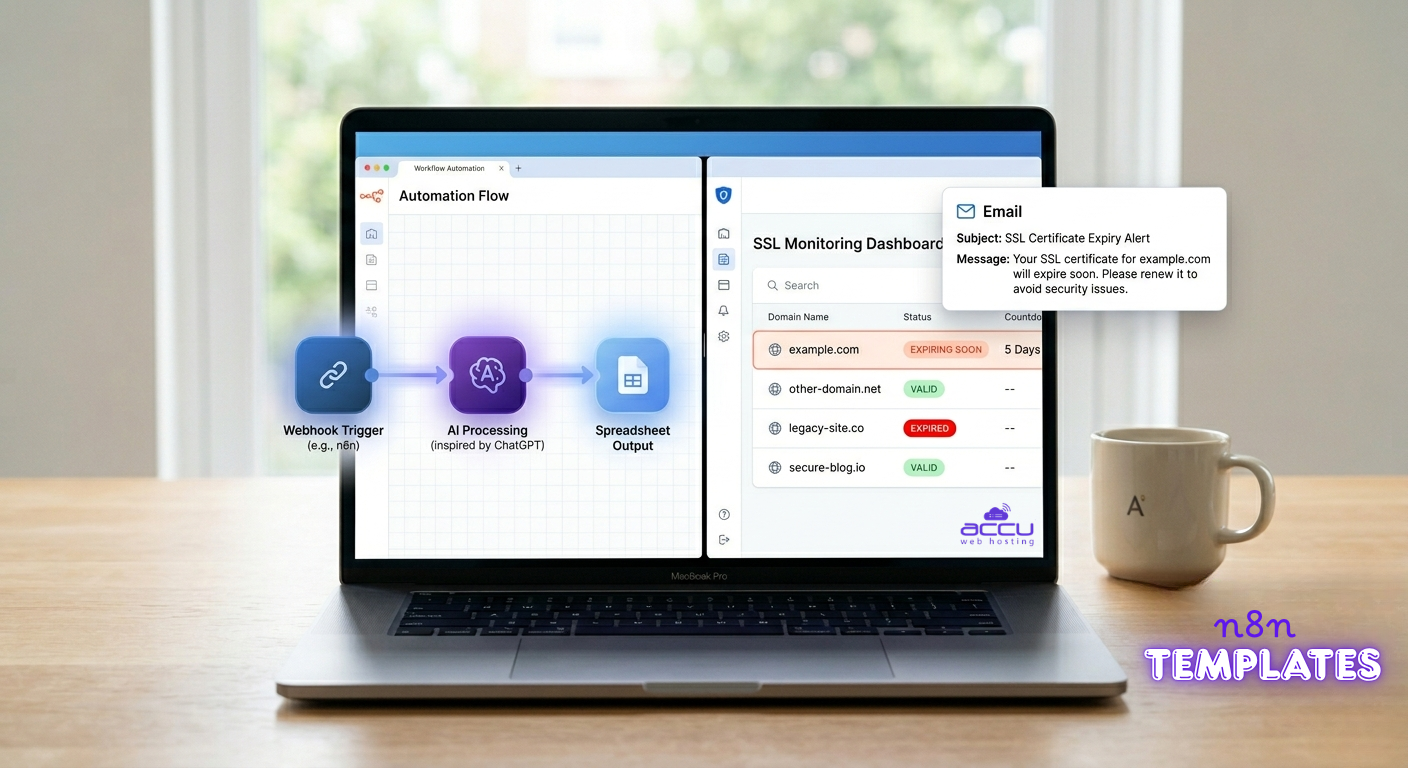
When it comes to workflow automation, a “blank canvas” goes beyond a clean slate; it often becomes the largest obstacle in the way of innovation. When working with n8n, which is praised for being one of the few providers with a “fair-code” philosophy business model and limitless flexibility, the same thing applies – the possibilities offered by the software are both its greatest strength and its biggest weakness, in that they lead to an often hefty entry tax, which involves JSON mapping and countless node settings.
This is why templates can become a game changer when it comes to building workflows. In this post, we’ll look at how to use n8n templates to scale with clinical efficiency.
If you’re new to n8n, check out our guide on “What is n8n and How It Works” for a detailed overview.
What Are n8n Templates?
n8n templates are pre-built automation workflows that you can use to quickly set up tasks without creating everything from scratch.
Instead of manually connecting nodes, configuring triggers, and building logic step by step, templates give you a ready-made structure that already performs a specific function. You just import the template, adjust a few settings (like API keys or inputs), and it’s ready to run.
Best n8n Templates
1. Sales Automation Templates
Sales workflows in n8n are engineered to eliminate manual friction, directly increasing operational throughput and accelerating lead-to-close velocity.
Lead Capture & CRM Sync
This template automatically collects leads from sources like forms, landing pages, or ads and sends them directly to your CRM (HubSpot, Salesforce, etc.).
Instead of manually entering data, the workflow captures user details, formats them, and pushes them into your sales pipeline instantly. By automating the data transfer, this workflow ensures 100% data integrity across your stack.
It eliminates human error during entry, allowing your sales team to act on high-fidelity lead data in real-time.
Lead Enrichment Workflow
This workflow enhances basic lead data (like email) by pulling additional details such as company size, job role, or social profiles using tools like Clearbit or Apollo.
It works by triggering after a new lead is captured, sending the email to enrichment APIs, and updating the CRM with detailed insights. This helps sales teams personalize outreach and close deals more effectively.
Automated Follow-Up System
Following up manually is inconsistent and time-consuming. This template sends automated emails or messages based on user behavior.
For example, if a lead doesn’t reply within 2 days, the system automatically sends a follow-up email. It ensures consistent communication and improves conversion rates.
Automate Lead Generation from Google Maps
Finding new customers can often take a lot of time, especially when you’re manually searching for leads and collecting contact details one by one. This process can quickly become repetitive and inefficient.
With an automated approach, you can extract business contact information directly from platforms like Google Maps without the need for manual effort. While the system handles lead collection in the background, you can focus more on outreach, building relationships, and closing deals.
Smart Expense Tracking and Financial Management
Managing expenses manually can be time-consuming and prone to errors. With an automated system, you can log your expenses through a simple chat interface, where an AI-powered assistant understands your input and records the data in an organized format, such as a spreadsheet.
This approach helps you maintain accurate financial records without the need for repetitive data entry, making the entire process faster and more efficient.
2. AI & LLM Workflows (Intelligent Automation Layer)
This is where n8n becomes more than just automation. These templates don’t just move data, they understand it, process it, and make decisions.
AI Customer Support Assistant
This template connects your internal knowledge (FAQs, docs, help articles) with an AI model to handle customer queries automatically. When a user asks a question, the workflow processes the input, searches relevant data, and generates a contextual response.
Behind the scenes, it often uses a retrieval system (like vector databases) to ensure answers are accurate rather than generic. This makes it far more reliable than simple chatbot replies.
For businesses, this means support becomes scalable.
AI Content Generation Workflow
This workflow takes a simple input, like a topic, keyword, or product description, and generates structured content such as blogs, emails, product descriptions, or social media posts.
The real value comes from chaining steps together. Instead of just generating text, it can refine tone, format sections, optimize for SEO, and even push content directly into CMS platforms.
This significantly reduces content production time while maintaining consistency across platforms.
AI Data Query Assistant
This template allows users to interact with databases using plain language. Instead of writing SQL queries, a user can ask something like “Show last month’s sales performance,” and the workflow converts that into a query and returns results.
This bridges the gap between technical and non-technical teams. Managers and marketers can access insights without relying on developers, making decision-making faster.
Interact with PostgreSQL Using a Chat Interface
Accessing data from a database is usually straightforward, but writing queries and managing connections repeatedly can slow down your workflow.
With an AI-powered chat interface, you can interact with your PostgreSQL database using simple text prompts. The system understands your request, generates the required queries, and retrieves the data for you, making database access faster, easier, and more intuitive.
3. Marketing & Content Automation
Marketing workflows are designed to amplify reach while reducing manual effort.
Content Repurposing Engine
This template takes a single piece of content (like a YouTube video or blog) and transforms it into multiple formats, social posts, summaries, captions, and short-form content.
It works by extracting the core message, restructuring it for different platforms, and adapting tone and format automatically.
Instead of spending hours rewriting content, teams can scale distribution instantly, ensuring consistent presence across platforms.
Social Media Automation Workflow
This workflow handles scheduling and publishing content across multiple platforms. It can pull content from sources like Google Sheets, Notion, or CMS and publish it at predefined times.
More advanced setups include performance tracking, where engagement data is collected and analyzed to improve future posts.
This ensures consistency in posting — one of the most critical factors for social media growth.
Competitor Monitoring & Alerts
This template tracks competitor websites or product pages and detects changes such as pricing updates, new features, or product launches.
It works by scraping or monitoring specific elements and sending alerts when changes occur.
This gives businesses real-time insights into competitor strategies, allowing them to react faster and stay competitive.
4. IT & DevOps Automation (System Stability Layer)
These templates focus on monitoring, alerts, and system reliability.
Server Monitoring Workflow
This template continuously checks server performance, uptime, and resource usage. If something unusual happens, it sends instant alerts.
It helps teams detect issues early and respond before users are affected, improving overall system reliability.
SSL Certificate Monitoring
This workflow tracks SSL certificate expiry dates and sends alerts before they expire.
While simple, it prevents major issues like website downtime and security warnings, which can damage user trust and SEO rankings.
Incident Response Automation
When an error occurs, this workflow automatically collects logs, creates a ticket, and notifies the relevant team.
This reduces response time and ensures issues are handled quickly without manual coordination.
Real-Time File Monitoring and Alerts
Certain files, especially those critical to your system or configuration, should remain unchanged unless necessary. An automated monitoring setup helps you track these files and instantly notifies you whenever any modification occurs.
This ensures you stay informed at all times and can take immediate action if something unexpected happens, helping maintain system stability and control.
5. HR & Internal Operations
These templates streamline internal processes and team workflows.
Resume Screening Automation
This workflow analyzes incoming resumes and filters candidates based on predefined criteria.
It reduces manual effort and speeds up the hiring process, allowing recruiters to focus on qualified candidates.
Employee Onboarding Workflow
Handles onboarding tasks like account creation, tool access, and welcome emails automatically.
This ensures new employees are set up quickly and consistently without manual intervention.
6. E-commerce Automation
E-commerce workflows focus on customer experience and operational efficiency.
Order Notification System
This template sends real-time updates to customers when an order is placed, shipped, or delivered.
It reduces uncertainty and improves customer satisfaction by keeping buyers informed throughout the process.
Inventory Management Workflow
Tracks stock levels and sends alerts when inventory drops below a threshold.
Advanced versions analyze sales trends to predict demand and prevent stockouts, helping businesses stay prepared.
Abandoned Cart Recovery
This workflow detects when a customer leaves items in their cart and triggers follow-up messages or emails.
It helps recover lost sales by re-engaging potential buyers and reminding them to complete their purchase.
7. Data & Integration Workflows
These templates ensure systems stay connected and data flows smoothly.
API Data Sync Workflow
Automatically transfers data between different applications using APIs.
This keeps systems updated in real time and eliminates the need for manual data entry.
Automated Reporting Workflow
Collects data from multiple sources and generates reports on a schedule.
This ensures teams always have up-to-date insights without manually compiling data.
Backup & Data Protection Workflow
Creates regular backups of databases or files and ensures data can be restored if needed.
This is essential for maintaining reliability and protecting against data loss.
How to Install an n8n Template?
Installing a template in n8n is simple, but first, you need a running n8n instance (self-hosted or cloud). Once your setup is ready, you can import and start using templates in just a few steps.
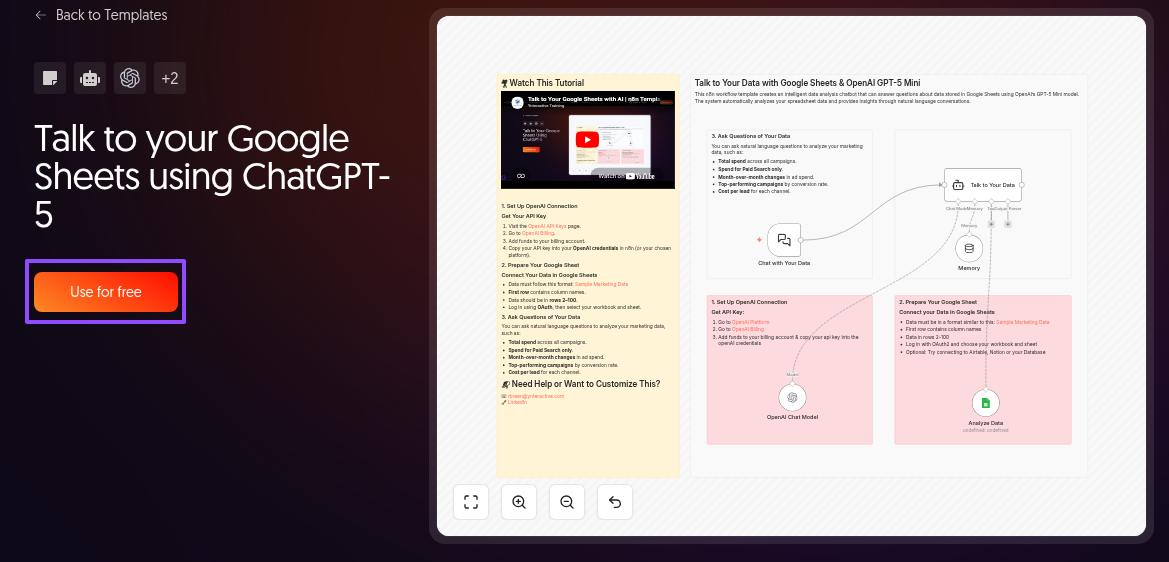
Step 1. Go to the n8n template library and open the template you want to use. Click on “Use for free.”
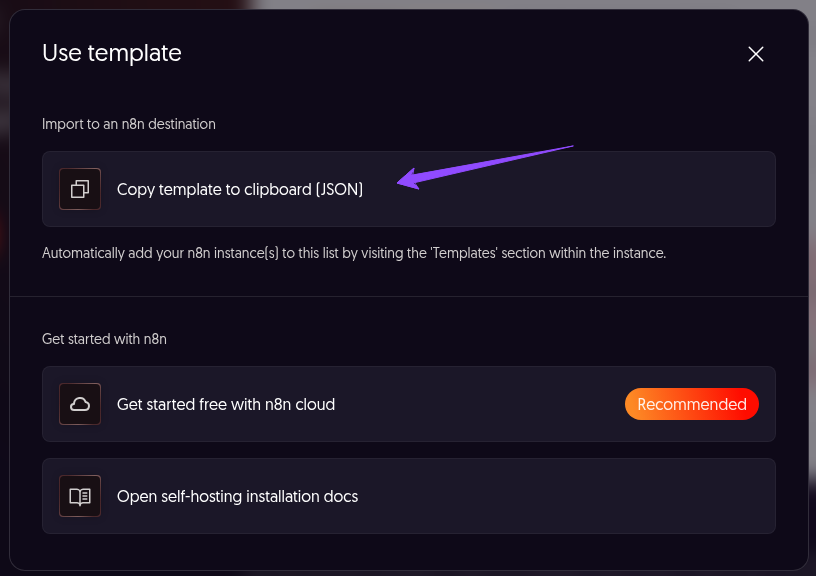
Step 2. Click on Copy template to clipboard (JSON) and paste your copied template to a text file and save it as a .json file.
Step 3. Log in to your n8n instance (local, VPS, or cloud).
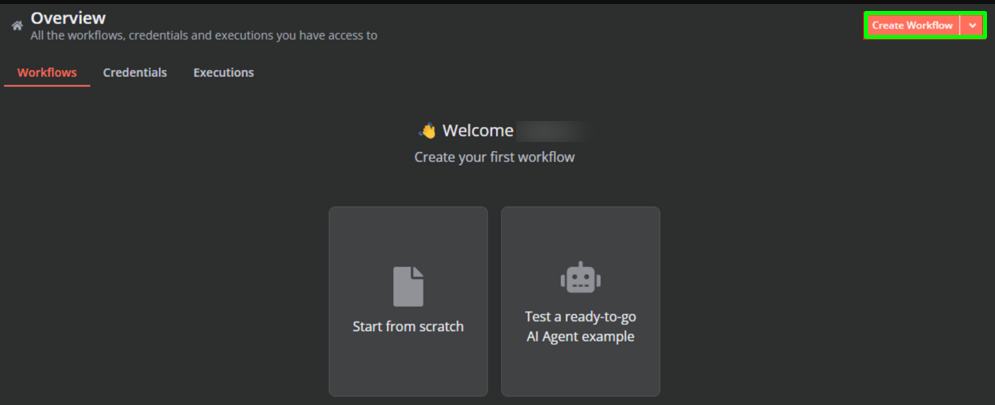
Step 4. After that, navigate to Overview and click on Create Workflow.
Step 5. In the top-right, click the triple-dot and then Import from file…
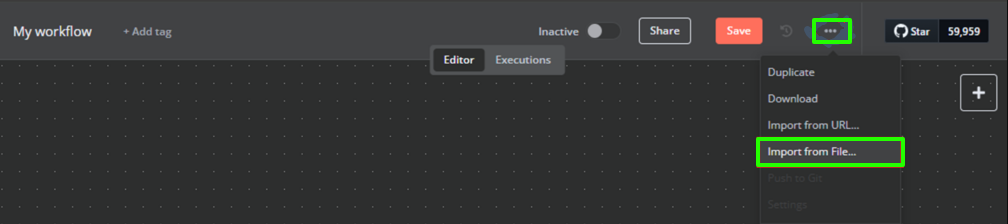
Step 6. Select your saved file, and your template will be uploaded.
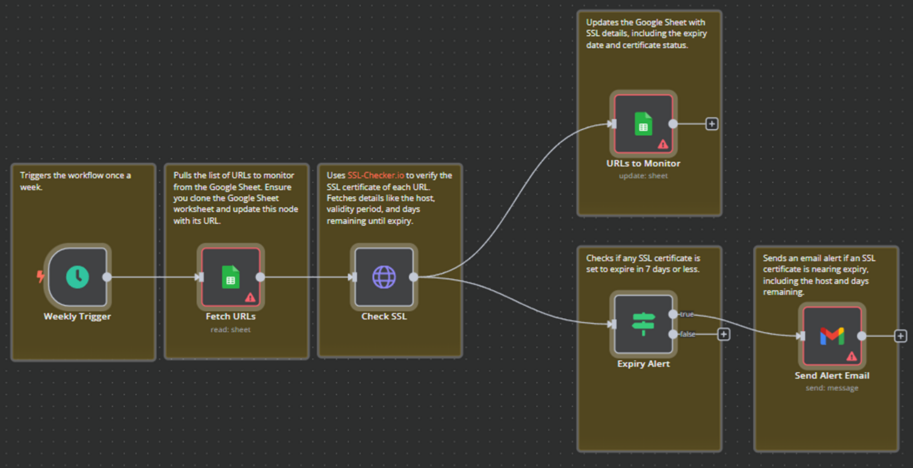
Note: Nodes highlighted in red are not ready for use and require configuration.
Configuring Your Template
Pre-built n8n templates that use ChatGPT with Google Sheets require proper configuration before they work. These requirements are usually mentioned in the template description. Make sure you review them and apply all necessary settings.
This template requires the Webhook, AI (ChatGPT), and Google Sheets nodes to be configured. Let’s configure them one by one.
Configure the Webhook node
Double-click the node. This will open the node configuration. Required fields (if any) will be highlighted in red.
- Set the method to POST.
- Copy the Webhook URL — this is the endpoint where your data will be sent.
If you are testing, use the Test URL.
For production, use the Production URL (only works after activation).
Configure the AI (ChatGPT) node
Double-click the node. Missing values will be highlighted in red.
- If you already have credentials configured, select them from the dropdown and move ahead.
- If not, click the dropdown → Create new credential.
- Enter your OpenAI API key and save.
Now configure the prompt carefully. This step is critical.
The AI must return structured output. For example:
- JSON format
- Or clearly defined fields
If the output is not structured, the next node (Google Sheets) will not work correctly.
Configure the Google Sheets node
If you have existing credentials:
- Select them from the dropdown
If not:
- Click dropdown → Create new credential
- Choose Google Sheets OAuth2 API
- Enter Client ID and Client Secret
- Click Sign in with Google
- Complete authentication
After successful login, return to the node.
Now configure:
- Select your Spreadsheet
- Select the Sheet (tab)
- Set operation to Append Row.
Make sure the fields are mapped correctly from the AI node output to the sheet columns.
Prepare your Google Sheets file
Your Google Sheet must:
- Have headers in the first row
- Match the fields coming from the AI node
Example:
- Column A → name
- Column B → email
- Column C → message
If headers don’t match, data will not map correctly.
Configure remaining nodes
If your template includes additional nodes, configure them the same way:
- Fix missing credentials
- Fill required fields
- Ensure no errors remain
Final check
After configuration:
- No nodes should be highlighted in red
- Credentials should be properly connected
- Field mapping should be correct
Test your workflow
Run the workflow in test mode.
Send data to the webhook and verify:
- AI is returning structured output
- Data is added to Google Sheets correctly
Activate and save
Once everything is working:
- Click Activate (this enables the production webhook) and click Save.
Conclusion
Working with templates in n8n is one of the fastest ways to build powerful automations without starting from scratch. Instead of designing workflows node by node, templates give you a ready-made structure, you just need to configure credentials, adjust a few settings, and connect your services.
However, the real value comes from proper configuration. Most issues users face are not because of the template itself, but due to missing credentials, incorrect field mapping, or unconfigured nodes. Once you understand how to set up nodes correctly and ensure clean data flow, you can turn any template into a fully working automation within minutes.
In short, n8n templates help you move from idea → execution quickly, as long as you focus on setup, testing, and small customizations.
Frequently Asked Questions
1. What are n8n templates?
n8n templates are pre-built workflows that you can import and use instead of creating automations from scratch. They include nodes, logic, and structure, requiring only configuration to get started.
3. Why is my template not working after import?
This usually happens due to:
- Missing credentials
- Unconfigured nodes
- Incorrect field mapping
- Inactive workflow
Check for red-highlighted nodes and fix required fields.
4. Do templates include API keys or credentials?
No. For security reasons, templates never include credentials. You must connect your own accounts (Google, APIs, etc.) manually.
5. Why are some nodes highlighted in red?
Red nodes indicate missing configuration such as:
- Credentials
- Required input fields
- Incorrect settings
You need to open and fix each node.
6. Can I customize a template?
Yes. You can:
- Add or remove nodes
- Modify logic
- Change triggers or actions
Templates are fully editable.
7. What is the most common mistake beginners make?
The biggest mistake is not structuring data properly between nodes. For example, when using AI tools like ChatGPT, unstructured output can break the workflow.
8. Do I need coding skills to use n8n templates?
No. Most templates can be configured without coding. However, basic understanding of APIs and data flow can help you troubleshoot and customize workflows more effectively.
9. How do I test if my template is working?
- Run the workflow in test mode
- Check execution logs
- Verify output data in the final node
10. Can I use templates in self-hosted n8n?
Yes. Templates work in both:
- n8n cloud
- Self-hosted setups
The setup process is the same, except for hosting and credentials.

