How to Integrate WordPress With GitHub?

Collapse

Unconfigured Ad Widget

Collapse
X
 
  • Filter
  • Time
  • Show
Clear All
new posts
  • Clay Page
    Senior Member
    • Sep 2022
    • 127

    How to Integrate WordPress With GitHub?

    VPS Hosting
    Hello all,
    I am facing this issue, that how to integrate wordpress with github. I am looking to fix this issue quickly.
    Any help would be greatly appreciated.
  • Rex Maughan
    Senior Member
    • Mar 2022
    • 219

    #2


    ​ The developer puts their code online, publicly or privately, with the help of Git Hub. It enables them to share their code with others and motivates them to access that code.


    Here are steps where you integrate Wordpress with GitHub.


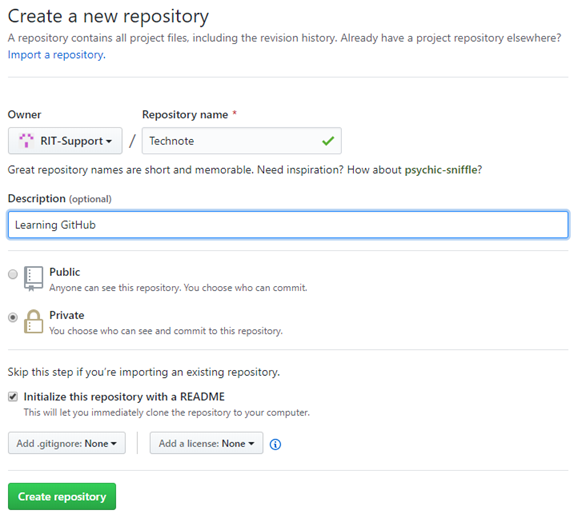
    Step 1: Create a GitHub repository


    Log in to GitHub and create a repository first.


    Give a name to your repository. You can add descriptions and access control(Public and Private).


    Step 2: Push live wordpress files to the GitHub repository


    Push all your wordpress files and folder from your live server to the GitHub repository after creating a new repository.


    Run the following command:


    1. cd applications/folder_name_of_your_wordpress_application/public_html


    2. git init: Initialize empty git repository.


    3. git add: This command adds all files to the local GitHub repository and stages them.


    4. git checkout -b master: switch to a new branch


    5. git commit -m "first commit": Commit the changes and prepare them for push to the GitHub repository.


    6. git config --global user.email "[email protected]"


    git config --global user. name "Your Name."


    7.git remote add origin https://github.com/username/my-git-theme.git


    8.git push origin master - With this command, all files will be uploaded to the master branch of the GitHub repository


    Step 3: Install git


    You can now download your files from GitHub to your PC after installing Git locally.


    Step 4: From the GitHub repository, pull to the local folder


    Start removing all files and folders to your local folder.


    Create a folder, press Right-Click → Git Bash Here.


    Enter the following commands:
    1. git init
    2. git add
    3. git remote add origin https://github.com/username/GitHub.git
      /* Don’t forget to replace the URL with your own. */
    4. git pull origin master


    It could take some time, depending on your connection's speed and the size of your WordPress repository.


    Go to your local WordPress folder once the procedure is complete. You can see that the GitHub repository's whole set of files was successfully fetched.


    Step 5: Connect Sublime text with GitHub


    Connect sublime to GitHub; now, you easily submit your changes from the local environment to the WordPress repository on GitHub.


    To access the wordpress folder, in Sublime Text, go to File → Open Folder


    Step 6: Push from Local to GitHub


    Now put your code into the file; for uploading to the GitHub, we need to stage all the unstaged files.


    Press S to stage this file and use the git: status command to check its status. The file has been switched to staged mode.


    Press "c" to save this change. I've modified the wp-login.php file; a new tab will open with details. To submit the commit, type "my commit" at the file's top and hit CTRL+ENTER.


    Use git: push to send the changes to the GitHub repository once connected.


    Now all your local code is available on GitHub.


    Advantages of Using GitHub With WordPress
    • Version control: This platform keeps track of all changes and stores several versions of your project.
    • Have multiple backups
    • You can easily share your work
    • User friendly
    • Security: Git secures your data using the SHA1 algorithm.
    • Easy branching: Easily merge your code from one branch to another

    Comment

    • nehakakar
      Junior Member
      • Jun 2023
      • 1

      #3
      Very well explain

      Comment

      Working...
      X
