How to Use WooCommerce Blocks on Your WordPress Site
Do you know?
Building a successful eCommerce store requires various components, such as p product catalogs, user-friendly search and filtering functions, customer reviews, etc. WooCommerce blocks can help you to simplify this process.
Let's take a closer look at WooCommerce Blocks to enhance your WordPress site's e-commerce functionality easily.
What is WooCommerce?
WooCommerce is a free, open-source WordPress plugin that enables the creation of e-commerce websites. It provides a robust online platform for selling products and services, seamlessly integrating with WordPress websites.
WooCommerce offers features such as secure payment gateways, product management, inventory tracking, and customizable themes, making it a popular choice for businesses looking to establish an online store.
What are the WooCommerce Blocks?
WooCommerce Blocks integrates with the user-friendly drag-and-drop interface of the Gutenberg editor. It offers a collection of specialized blocks for product display, cart management, checkout processes, and additional functionalities.
In older versions of WooCommerce, you had to install a separate WooCommerce Blocks plugin. However, in the latest WooCommerce version, the blocks are now integrated directly into the WooCommerce plugin, and you don't need to activate them separately.
Requirements For WooCommerce Blocks
- WordPress 6.4+ version is required
- WooCommerce 8.3+ version is required
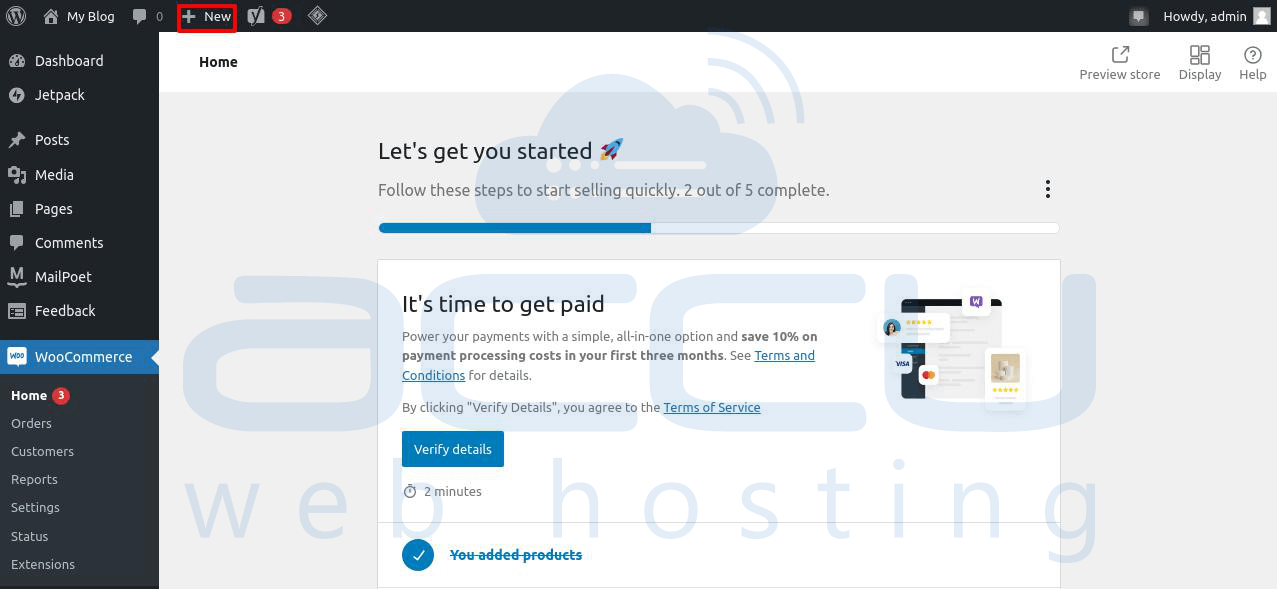
To use WooCommerce Blocks, start by opening or creating a page or post. Click the + button on the top bar to access all blocks, then proceed to the WOOCOMMERCE section.
Here's a brief overview of the various blocks available in WooCommerce:
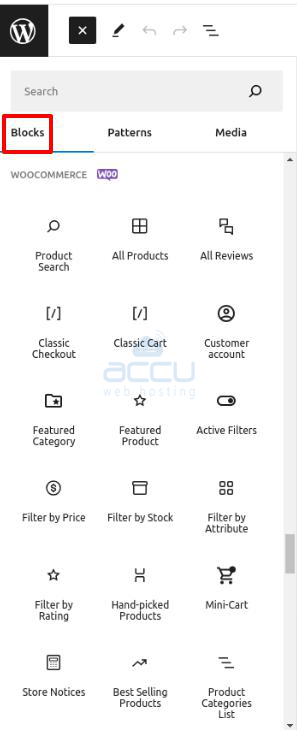
- Product Search - adds a search bar for swift customer product searches.
- All Products - Displays all store products in a grid.
- All Reviews - Lists all product reviews.
- Classic Checkout - Renders the classic checkout shortcode.
- Classic Cart - Renders the classic cart shortcode.
- Customer Account - Enables customer login and logout capabilities.
- Featured Category - Highlights a product category and a call-to-action (CTA) to encourage prompt responses.
- Featured Product - Highlights a specific product or variation and a corresponding CTA.
- Active Filters - Displays the currently active filters.
- Filter by Price - Presents a price range that customers can use to filter products.
- Filter by Stock - Enables filtering products based on their inventory status.
- Filter by Attribute - Filter product filtering based on attributes such as size or color.
- Filter by Rating - Allows customers to filter products based on their rating.
- Mini Cart - Offers a quick view button for the shopping cart.
- Store Notices - Displays customer-facing notifications generated by WooCommerce or other extensions.
- Best Selling Products - Displays a grid showcasing your store's all-time best sellers.
- Products Categories List - Displays all product categories in a list or a dropdown format.
- Products by Category - Displays a grid of products from the selected categories.
- Product Collection (Beta) - Displays products from a specified collection.
- Newest Products - Display the most recent products in a grid.
- On-Sale Products - Displays current sale items in a grid.
- Products by Tag - Presents products associated with the selected tag in a grid.
- Top Rated Products - Showcases the highest-rated products in a grid.
- Products by Attribute - Displays products with the chosen attributes in a grid.
- Reviews by Category - Displays product reviews specific to specified categories.
- Reviews by Product - Displays reviews based on individual products.
- Single Product - Highlights a single product.
- Cart - Exhibits the shopping cart.
- Checkout - Displays the form enabling customers to submit orders.
Best WooCommerce Blocks (and how to use them)
Once you've installed WooCommerce and uploaded your products, you can enhance your ecommerce store with additional features and functions.
Let's explore 7 functional WooCommerce blocks and how to use them effectively on your WordPress site.
- Product Grid Block
- Featured Product Block
- Filter Blocks
- Reviews Block
- Best Selling Products
- Sale Products Block
- Cart and Checkout Blocks
-
Product Grid Block
A product grid block is a flexible tool that lets you display your store's products in an organized grid format on your WordPress website.
The steps to add and customize the product grid block are described below:
Step 1. Go to the page or post where you want to display the products. Assign a title, such as "Products."
Step 2. Click the + button on the top navigation bar to reveal all the blocks.
Scroll down to the WOOCOMMERCE section and choose All Products. Your products will be displayed in a grid layout on the page.
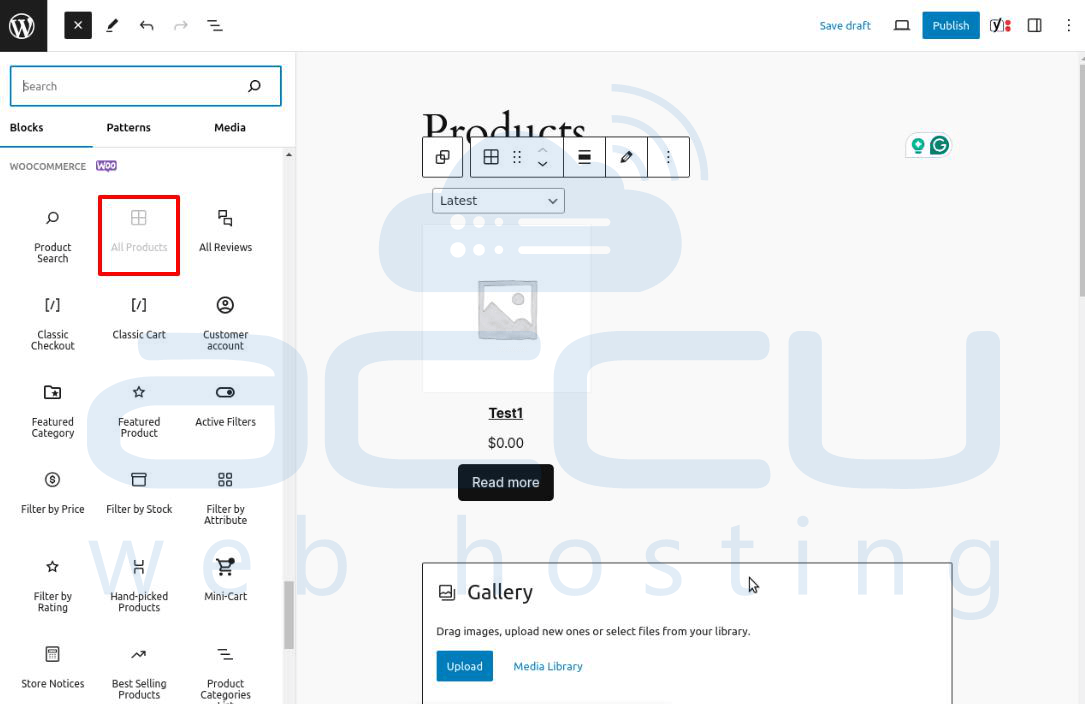
Step 3. Use the block settings panel on the right side to customize this block.
For settings, click on the "Settings" icon, which is located at the second-rightmost icon on the top navigation bar.
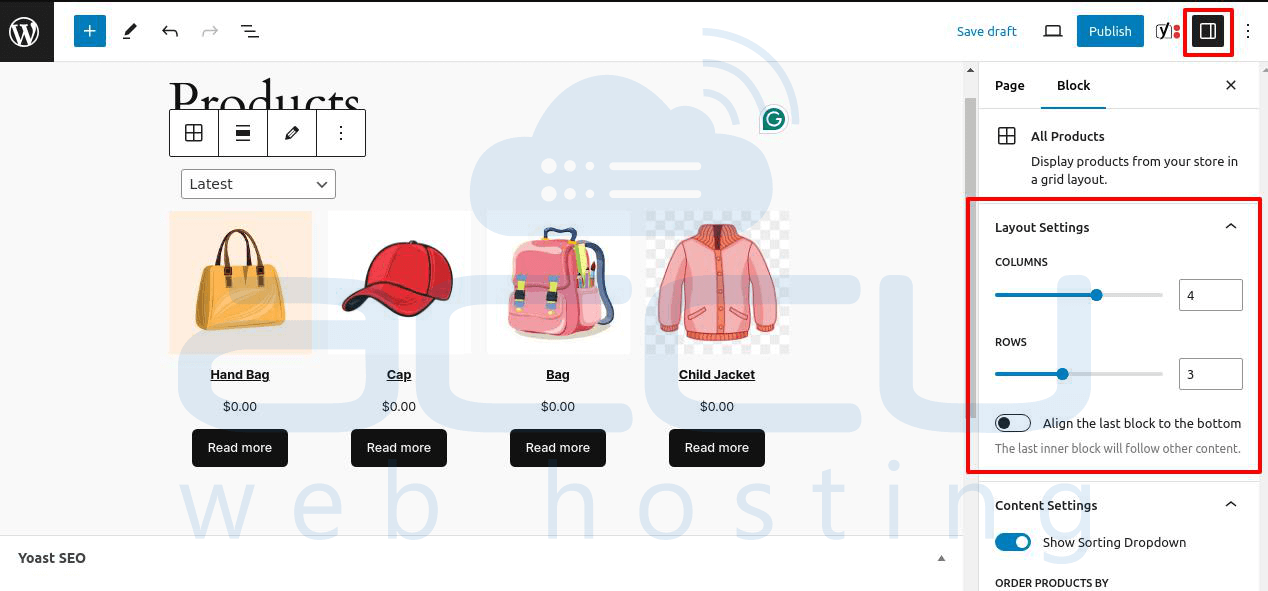
In this section, you have the flexibility to customize the grid's layout, content, and styling:
-
Layout Settings:
Adjust the number of rows and columns. For example, you can set both to 2 for a balanced look.
-
Content Settings:
Choose whether to include a sorting dropdown menu for customers. This function enables customers to select products in the order they prefer. You can also disable this feature.
-
Advanced Styling:
If necessary, add CSS classes for more sophisticated styling.
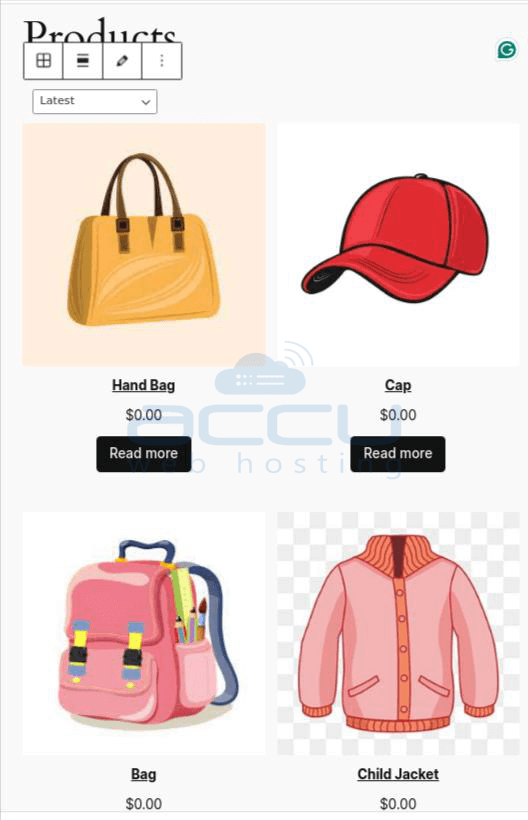
Step 4. After configuring the page, preview it to ensure everything is as intended.
Then, click the Publish button. This step lets you make the page accessible publicly, privately, or with password protection according to your preference.
-
Featured Product Block
You can highlight products on your page or post using the Featured Products Block.
To highlight a specific item, select a product, configure its display settings, and add it to your content.
To add a Featured Product Block, follow the following steps:
Step 1. Navigate to the page or post where you want to display a product.
Create a space where you want to create a product grid and the highlighted item at the top before or after the text or section.
You will see a + button on the left-hand side in this area.
Step 2. Click on the 3 horizontal dots to open the menu and make the necessary adjustments to your existing block.
You can select "add before" or "add after."
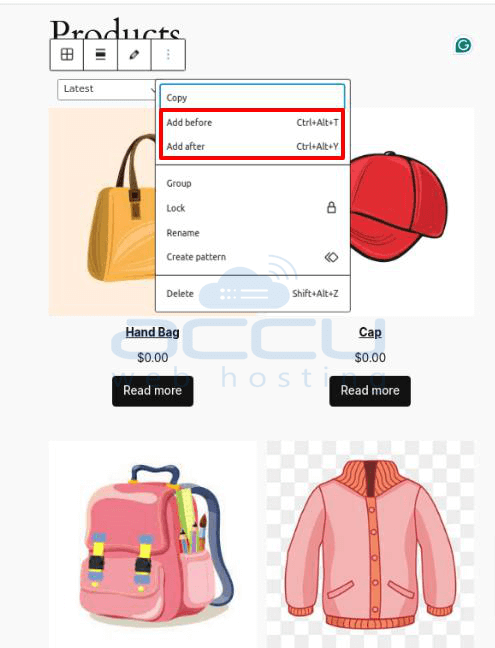
Step 3. Click the "+" button on the top navigation bar to display all the blocks, then search for the Featured Product block.
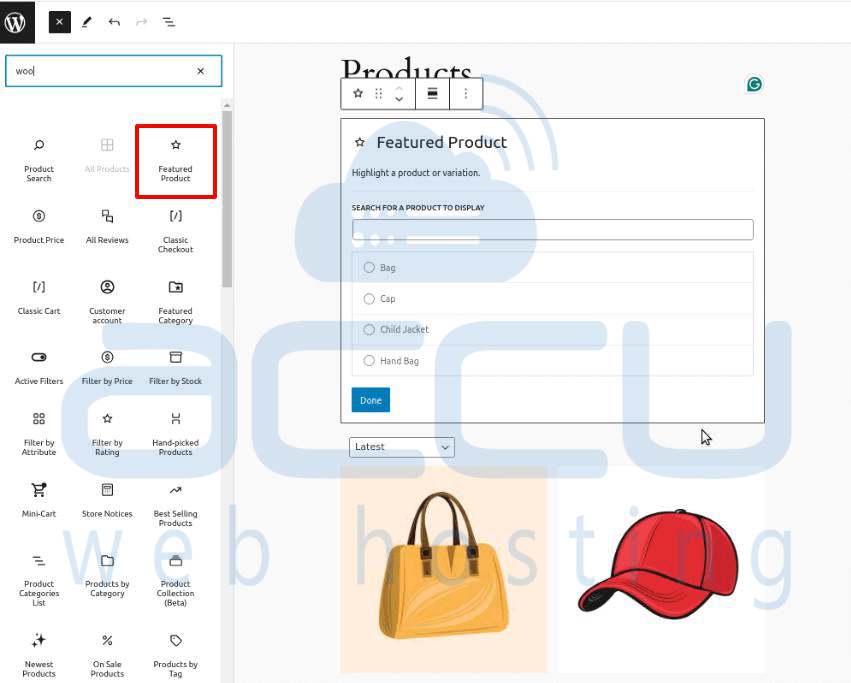
Step 4. Select the product you wish to display. Then, click on "Done."
Step 5. To uniquely customize your Featured Product block's appearance,
click "Settings."
Within the block settings panel, you can:
- Choose whether to display the product description and price.
- Configure the appearance of your media (images and videos).
- Specify the alt text for the product image.
- Pick the block overlay color.
- Adjust the opacity of the block.
Step 6. After making all the required adjustments, you can publish your page or update it if it's already live.
This step lets you observe the block in action and confirm that it appears exactly as you want.
-
Filter Blocks
Customers can use filter blocks to refine product searches based on specific criteria.
Step 1. Go to the page or post where you wish to add the blocks.
Step 2. Select the specific location where the filters should be added.
Step 3. Click the "+" button on the top navigation bar to display all the blocks.
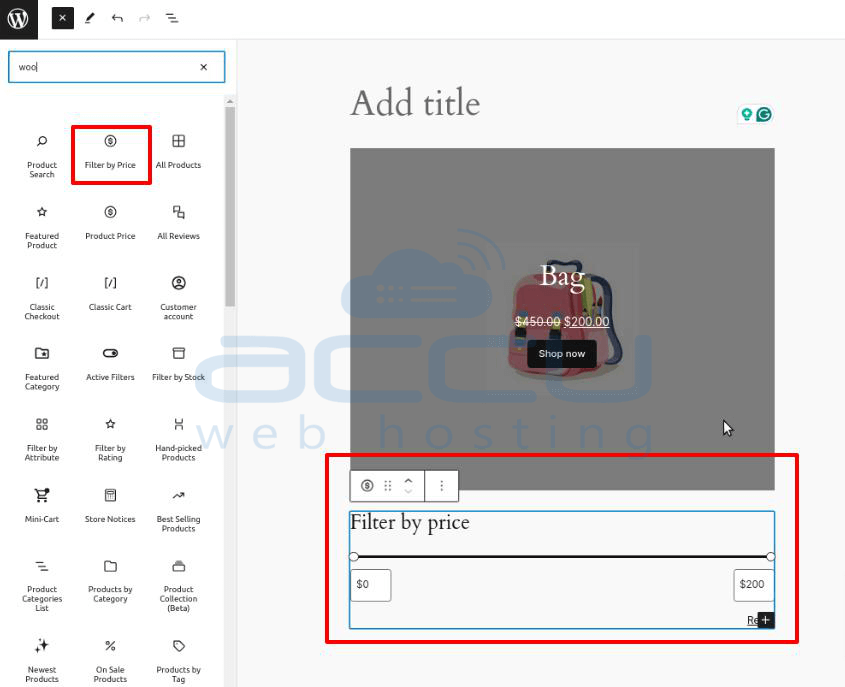
Step 4. Scroll down to the WOOCOMMERCE section, where you'll find filter options for price, stock, attribute, and rating.
For example, if you go for "Filter by Price."
Filter by Price Block
Users can add filter products based on their preferred price range; by selecting this option, you can display a price range slider.
You can customize the block settings on the right-hand panel to align with your requirements.
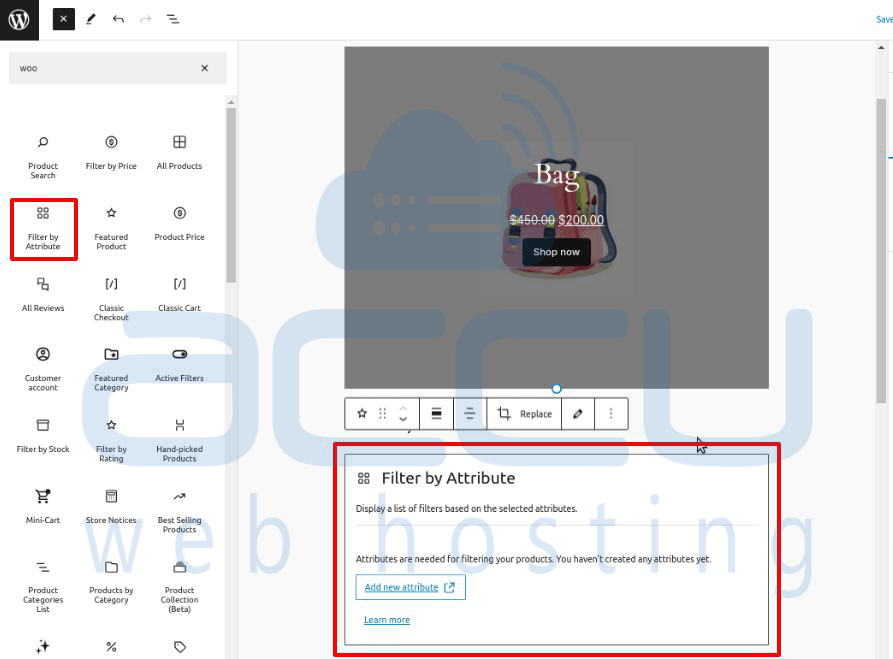
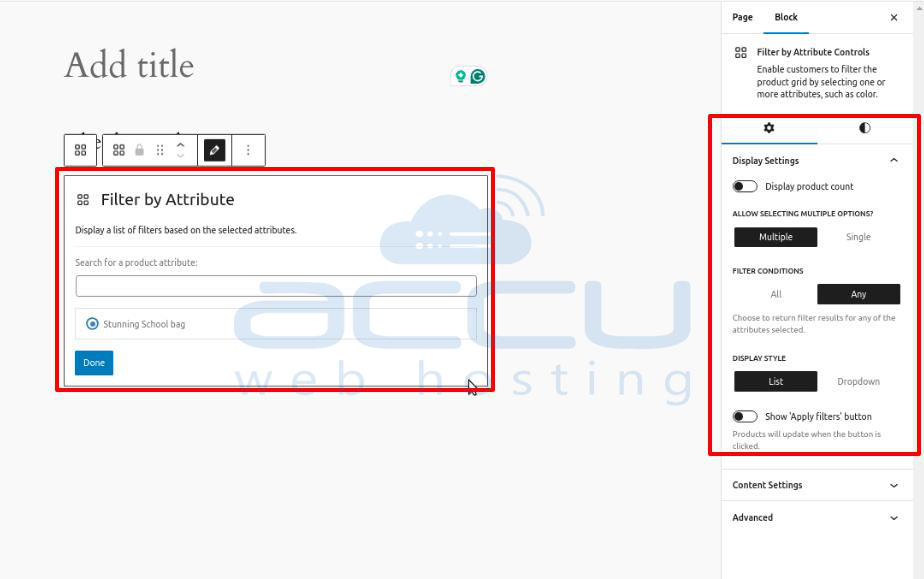
Filter by Attribute Block
You can select a specific attribute, like color, and adjust the settings accordingly. Additionally, you can enable the Display Product Count to show available products per color.
Then, you will be able to view the live page and test the functionality of the filter buttons.
-
Reviews Block
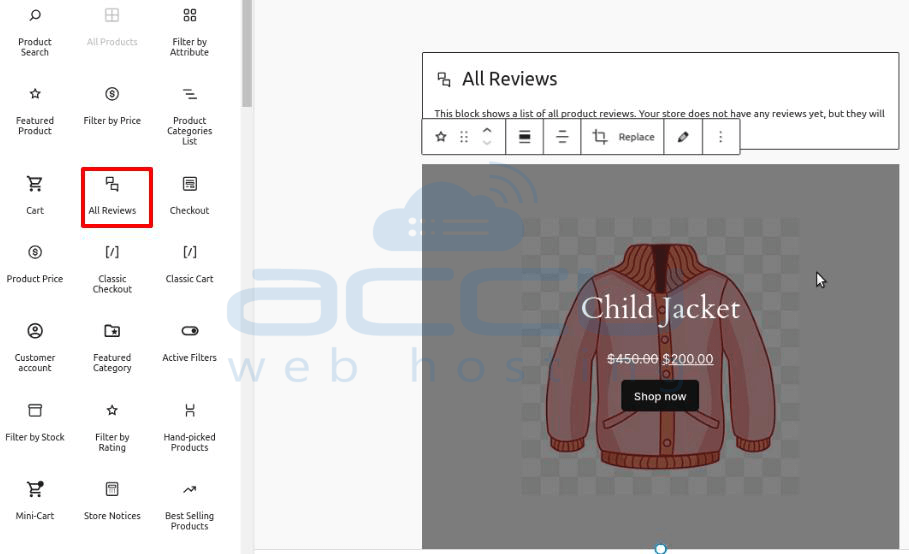
All Reviews Block is a section that shows a complete list of product reviews. It presents the reviewer's profile picture, product information, star rating, and review text.
You can organize the reviews, choose the displayed content, specify the image format, and adjust the list settings per your requirements.
-
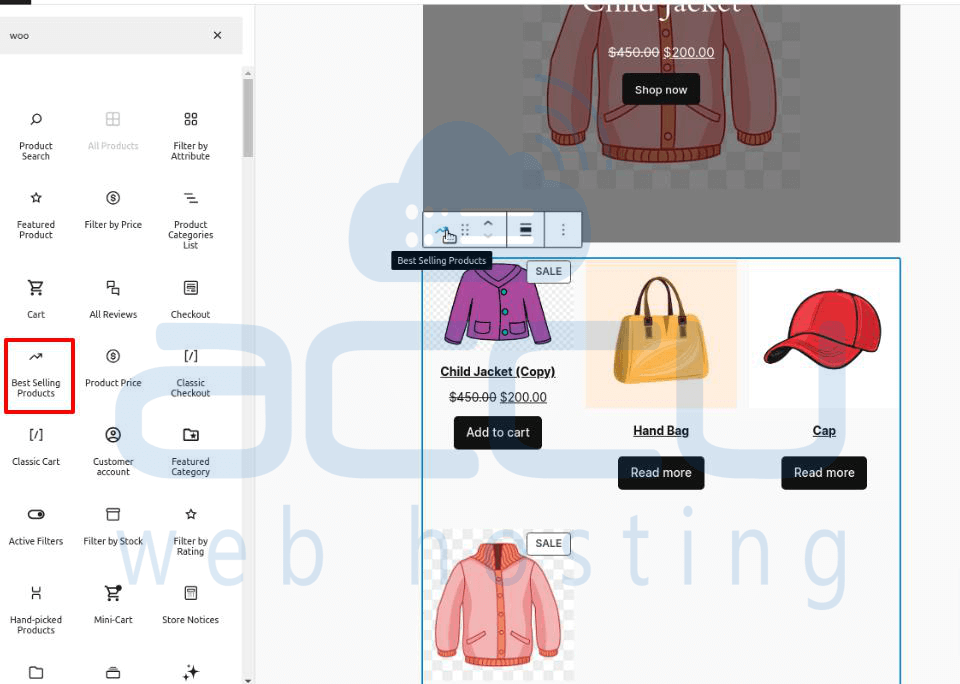
Best Selling Products Block
The Best Selling Products block for WooCommerce showcases a grid that presents your top-selling products.
You can align this block with the last one and add content elements such as the product title, price, rating, and an "add to cart" button. You also have the option to configure filter settings to refine the display.
-
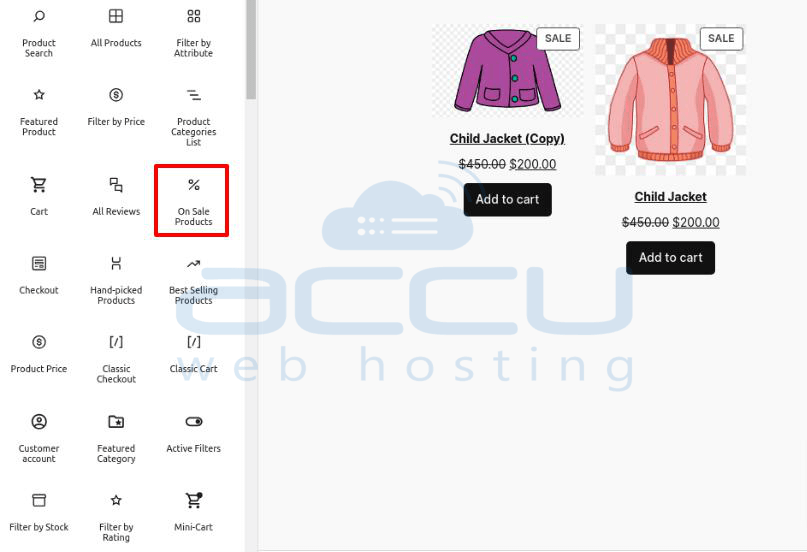
Sale Products Block
The On Sale Products block displays a grid containing all your currently on-sale products.
-
Cart and Checkout Blocks
The website's cart and checkout functions should be user-friendly and fully operational to provide a seamless experience.
Effective management of cart items and a simplified checkout process are essential to provide a better customer experience.
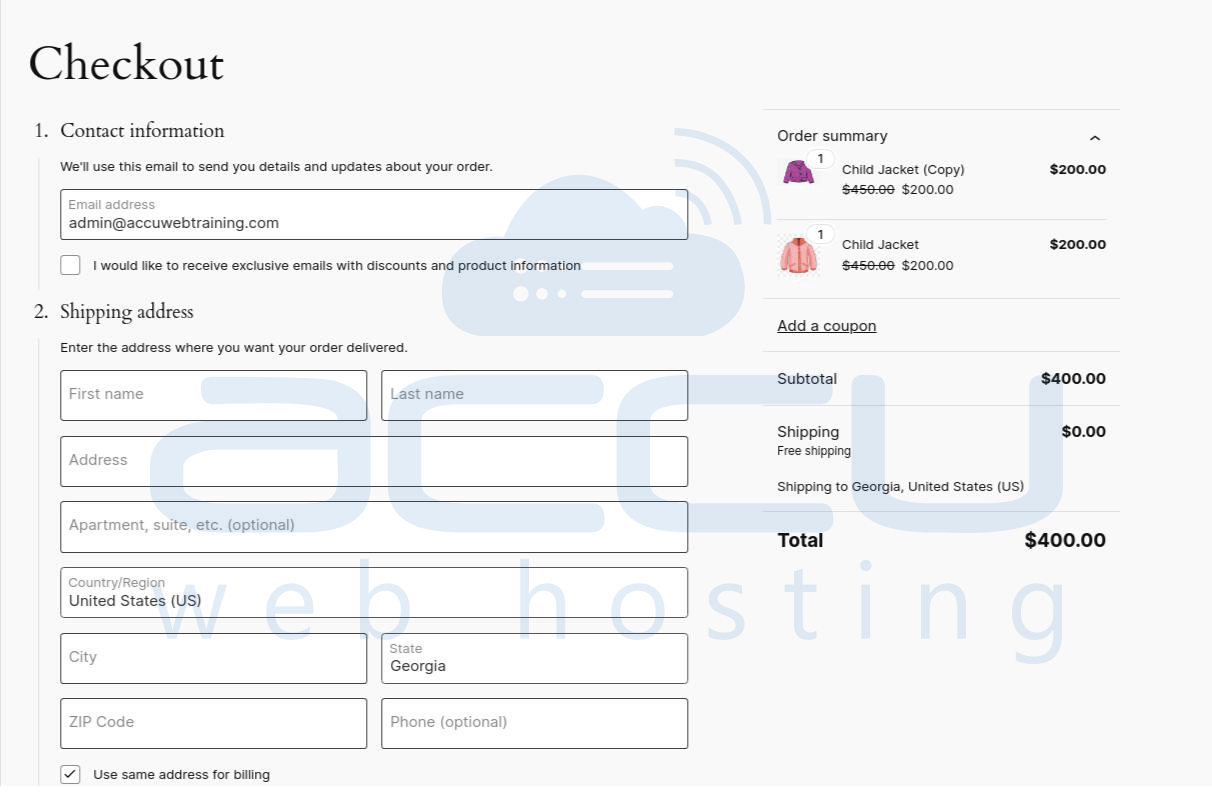
To allow customers to add products to their cart & make them easily accessible via the navigation bar, WooCommerce automatically creates a Cart and Checkout page using the required blocks.
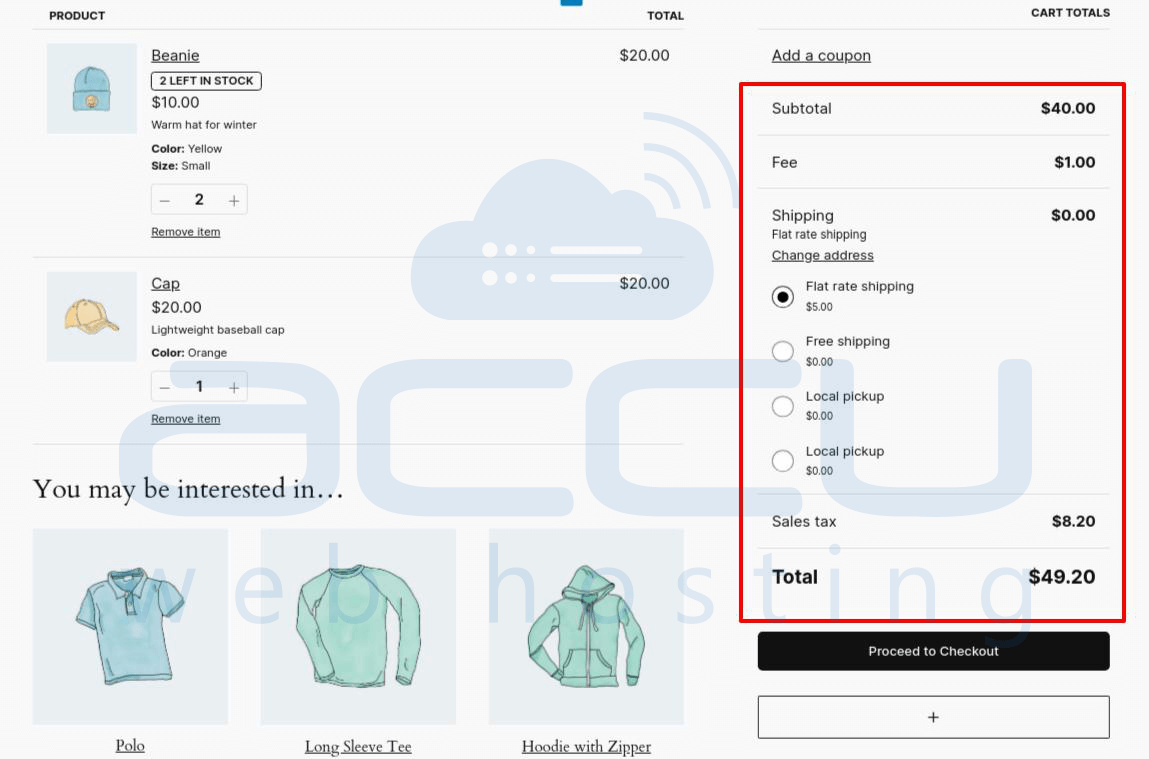
Once they've verified their cart's contents, your customers can click on the "Proceed to Checkout" button. Subsequently, they can provide the required details and complete the ordering process.
Conclusion
In conclusion, WooCommerce blocks provide a versatile and user-friendly way to customize and enhance the functionality of your online store. Using these blocks, you can create a tailored shopping experience for your customers, showcasing products, reviews, and bestsellers visually appealingly.
The ability to hand-pick products, display on-sale items, and incorporate various filters adds depth and flexibility to your store's presentation. With intuitive customization options and seamless integration, WooCommerce blocks empower you to design a unique and engaging shop page that aligns with your brand and optimizes the user experience. Whether you're a new or an experienced user, the diverse range of blocks offered by WooCcommerce allows you to create a dynamic & visually appealing online storefront to meet the specific needs of your business.
Frequently Asked Questions
1. Do WooCommerce blocks create a responsive site?
Yes, WooCommerce blocks are designed to be responsive, adaptable, and display well on various devices and screen sizes. The blocks adjust their layout and styling to provide an optimal viewing and interaction experience across different devices. This ensures that your online store remains accessible and functional, regardless of the device your customers use to browse and make purchases.
2. Is coding required to implement WooCommerce blocks?
No, coding is not necessarily required to implement WooCommerce blocks.
3. What are banner blocks?
WooCommerce Banner Blocks are versatile sections that you can integrate into your website. These blocks allow for customization with product images, text, and promotional elements to showcase specific products, discounts, sales, or entire product collections. Their design and content flexibility suits them for drawing attention to deals, featuring new products, or highlighting themed collections.
About the Author: Jason-Pat
Founder & CTO at AccuWebHosting.com. He shares his web hosting insights at AccuWebHosting blog. He mostly writes on the latest web hosting trends, WordPress, storage technologies, Windows and Linux hosting platforms.