

MetaTrader 4 (MT4) allows traders to monitor charts, manage trading accounts, and run Expert Advisors (EAs). However, managing multiple accounts or trading strategies in a single MT4 terminal can be difficult.
Installing multiple MT4 instances allows you to run separate terminals on the same Windows PC or Forex VPS. Each installation can have its own login, charts, indicators, Expert Advisors, and settings.
This setup can be useful when you want to manage multiple trading accounts, use different brokers, separate trading strategies, or run different EAs without mixing them in one workspace.
In this guide, you will learn how to install multiple MT4 instances, create shortcuts for each terminal, log in to different accounts, and manage server resources efficiently.
The exact installation screens and folder names may differ depending on the MT4 installer provided by your broker.
Can You Run Multiple MT4 Instances on One PC or VPS?
Yes. You can run multiple MT4 terminals on the same Windows PC or VPS by installing each terminal in a separate folder.
Each MT4 installation works as an independent terminal. You can use different trading accounts, brokers, charts, indicators, templates, and Expert Advisors in each instance.
The number of MT4 terminals you can run depends on the available CPU, RAM, storage performance, number of charts, indicators, and Expert Advisors. Running more terminals than the system can handle may cause slow performance or delayed platform responses.
Separate MT4 installations help keep accounts and trading setups organized. They also make it easier to manage different strategies without mixing charts, indicators, or EAs within a single terminal.
Benefits of Running Multiple MT4 Instances
Running separate MT4 terminals can help you organize different trading accounts and strategies.
Common benefits include:
- Use different trading accounts at the same time.
- Log in to accounts from different brokers.
- Keep manual trading and automated trading separate.
- Run different Expert Advisors in separate terminals.
- Use different charts and indicators for each strategy.
- Organize separate workspaces across multiple monitors.
- Reduce confusion when managing several accounts.
- Restart or update one terminal without changing the settings in another terminal.
Multiple MT4 installations do not automatically improve trade execution or increase system performance. Each additional terminal uses CPU and RAM, especially when several charts, indicators, or EAs are active.
Using separate terminals can make multi-account trading easier to organize. However, the VPS or PC must have enough resources to run all active terminals reliably.
How to Install Multiple MT4 Instances
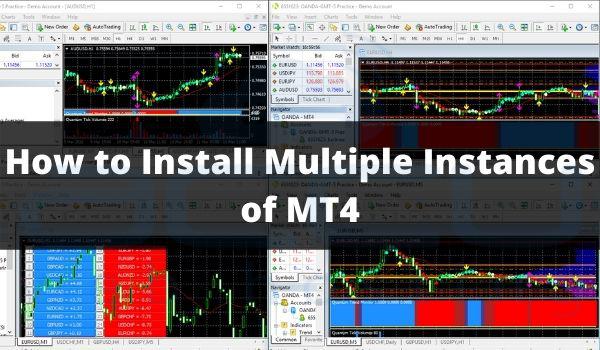
Follow these steps to install more than one MT4 terminal on a Windows PC or Forex VPS.
Step 1: Download the MT4 Installer
Download the MT4 installation file from your broker or another trusted source.
If MT4 is already installed, you can use the same installer again to create another installation. The available installation options may vary depending on the broker.
Step 2: Run the MT4 Installer
Double-click the installation file to start the setup process.
If Windows displays a security prompt, confirm that the installer is from a trusted source before continuing.
Step 3: Open the Installation Settings
Before selecting Next or Install, open Settings, Options, or the installation location section.
The name of this option may differ depending on the MT4 installer.
Step 4: Select a Different Installation Folder
Each MT4 terminal must be installed in a separate folder.
For example:
C:\Program Files\MetaTrader 4\MT4-1
C:\Program Files\MetaTrader 4\MT4-2
C:\Program Files\MetaTrader 4\MT4-3
You can also use another drive if required.
Do not install the second terminal over the first installation folder because this may overwrite files or update the existing terminal instead of creating a separate instance.
Step 5: Complete the First Installation
Select Install, Next, or the available installation option and wait for the setup process to finish.
Open the terminal and confirm that MT4 starts correctly.
Step 6: Run the Installer Again
Open the MT4 installer again to create the second terminal.
Return to the installation settings and select a new folder, such as:
C:\Program Files\MetaTrader 4\MT4-2
Complete the installation.
Step 7: Repeat for Additional MT4 Terminals
Repeat the same process for every additional terminal.
Use a different folder name for each installation:
MT4-1
MT4-2
MT4-3
MT4-4
Step 8: Create Desktop Shortcuts
Open the installation folder for each MT4 terminal.
Find the MT4 executable file. Depending on the MT4 version and installation, the file may be named:
terminal.exe
or:
terminal64.exe
Right-click the executable file and select:
Show more options → Send to → Desktop (create shortcut)
The available menu may differ between Windows versions.
Repeat this process for every MT4 installation.
Step 9: Rename Each Shortcut
Rename the shortcuts so they are easy to identify.
For example:
MT4 – Account 1
MT4 – Account 2
MT4 – EA Strategy
MT4 – Manual Trading
Do not include account passwords or other sensitive information in the shortcut names.
Step 10: Open Each MT4 Terminal
Open every shortcut and log in to the required trading account.
Each terminal should open as a separate MT4 instance.
You can now configure different charts, indicators, templates, and Expert Advisors for each terminal.
Installing each terminal in a separate folder prevents the installations from overlapping. Clear shortcut names also make it easier to identify the correct account or trading setup.
Alternative Method: Copy an Existing MT4 Installation
If MT4 is already installed and working correctly, you may be able to create additional terminal folders by copying the existing installation.
- Open the folder where MT4 is installed.
- Copy the complete MT4 installation folder.
- Paste the copied folder in the same location.
- Rename the new folder, such as MT4-2.
- Repeat the process for additional terminals.
- Open the copied folder.
- Find the MT4 executable file.
- Create a separate desktop shortcut.
- Open the new shortcut and confirm that the terminal starts correctly.
The available files and folder structure may vary depending on the broker’s MT4 installation.
If the copied terminal does not start correctly, use the separate installation method described above.
Copying an existing installation may save time when several terminals are required. However, each copied terminal should be tested before it is used for live trading.
Can You Use the Same MT4 Account on Two Different Devices?
In many cases, the same MT4 trading account can be accessed from more than one device. However, the available access options depend on the broker’s rules and account configuration.
For example, you may be able to access the same account from:
- A Windows PC
- A Forex VPS
- A laptop
- A mobile device
When the same account is open on multiple devices, account information may update across the active sessions. However, traders should avoid making conflicting changes from different devices.
Before using the same account on multiple devices, check the broker’s current rules and confirm how simultaneous access is handled.
Using multiple devices can make account monitoring more convenient. Checking the broker’s access policy first can help avoid unexpected login or synchronization issues.
How to Run 2 or More MT4 Platforms on a Forex VPS?
If you need to run multiple MT4 platforms simultaneously, a Forex VPS provides a more reliable environment than running everything on your personal computer. You can install and operate multiple MT4 instances on the same Windows VPS, with the number of terminals you can comfortably run depending on your VPS resources.
Running MT4 on a VPS also helps keep your trading platforms available even when your local computer is turned off, restarted, or affected by power or internet connectivity issues. AccuWeb Hosting Forex VPS plans are designed for trading platforms such as MetaTrader 4 (MT4), MetaTrader 5 (MT5), cTrader, TradeStation, MultiCharts, and Interactive Brokers.
For traders who need to run multiple terminals, choosing a plan with sufficient RAM, CPU resources, and storage is important. AccuWeb Hosting currently offers four Forex VPS plans, with recommended capacity ranging from up to 2 terminals to 8+ terminals.
Forex VPS Plans for Multiple MT4 Terminals
| Forex VPS 1 | Forex VPS 2 | Forex VPS 3 | Forex VPS 4 |
| From $7.99/mo* | From $14.99/mo* | From $26.99/mo* | From $59.99/mo* |
| Up to 2 terminals | Up to 4 terminals | Up to 6 terminals | Up to 8 terminals |
| 1.5 GB RAM | 3 GB RAM | 4 GB RAM | 8 GB RAM |
| 40 GB SSD Storage | 60 GB SSD Storage | 80 GB SSD Storage | 160 GB SSD Storage |
| 250 GB Bandwidth | 500 GB Bandwidth | 750 GB Bandwidth | 1 TB Bandwidth |
| 1 IP Address | 1 IP Address | 1 IP Address | 1 IP Address |
* Promotional monthly pricing shown for a 1-year term. Renewal and regular pricing may differ.
Compare Forex VPS Features
| Feature | Forex VPS 1 | Forex VPS 2 | Forex VPS 3 | Forex VPS 4 |
| Recommended Terminals | Up to 2 | Up to 4 | Up to 6 | Up to 8+ |
| RAM | 1.5 GB | 3 GB | 4 GB | 8 GB |
| SSD Storage | 40 GB | 60 GB | 80 GB | 160 GB |
| Bandwidth | 250 GB | 500 GB | 750 GB | 1 TB |
| IP Address | 1 | 1 | 1 | 1 |
| Windows Server | Windows Server 2019 | Windows Server 2019/2022/2025 | Windows Server 2019/2022/2025 | Windows Server 2019/2022/2025 |
| Weekly Backup | Included | Included | Included | Included |
| Easy Upgrades | Included | Included | Included | Included |
| Fully Managed VPS | Included | Included | Included | Included |
| Trading Platform Support | Yes | Yes | Yes | Yes |
| 99.9% Uptime | Yes | Yes | Yes | Yes |
| 24/7 Server Monitoring | Yes | Yes | Yes | Yes |
| 7-Day Money-Back Guarantee | Yes | Yes | Yes | Yes |
AccuWeb Hosting also provides additional resources as paid add-ons, including extra disk space, bandwidth, RAM, dedicated IP addresses, vCPU resources, and daily CDP backups.
Which Forex VPS Plan Should You Choose?
If you only need to run one or two MT4 terminals, Forex VPS 1 can be a suitable starting point. Traders running several MT4 instances may benefit from Forex VPS 2 or Forex VPS 3, while Forex VPS 4 is designed for workloads requiring 8+ terminals and more memory.
All plans include features such as managed VPS support, weekly backups, 24/7 trading server monitoring, 99.9% uptime, support for major trading platforms, and a 7-day money-back guarantee.
Before selecting a plan, consider the number of MT4/MT5 terminals you plan to run, the Expert Advisors or indicators you use, and the amount of RAM and CPU resources they require. You can also check latency to your broker and select a suitable server location for your trading setup. AccuWeb Hosting offers Forex VPS locations across multiple regions, including the US, UK, Japan, Singapore, Australia, India, Germany, France, and other locations.
How Many MT4 Instances Can You Run on a VPS?
There is no fixed number because MT4 resource usage depends on the trading setup.
The number of terminals a VPS can handle may be affected by:
- Available RAM
- CPU resources
- Number of open charts
- Number of active indicators
- Number and complexity of Expert Advisors
- Market activity
- Number of symbols being monitored
- Other applications running on the VPS
A terminal with one or two charts may use fewer resources than a terminal running several charts and resource-intensive EAs.
Monitor CPU and memory usage after adding a new terminal. If the VPS regularly shows high resource usage, slow platform responses, or delayed updates, reduce the workload or upgrade the server resources.
AccuWeb Hosting’s current guidance recommends different terminal counts for different Forex VPS plans, but the actual number can vary based on the workload and active trading tools.
Monitoring server resources helps you identify performance problems before they affect active MT4 terminals. Choosing a VPS based on the real workload can provide more reliable operation.
Troubleshooting Multiple MT4 Instances
The second MT4 terminal opens the first installation
Check the desktop shortcut.
Right-click the shortcut and select Properties. Confirm that the Target field points to the correct MT4 installation folder.
The second installation replaced the first one
The same installation folder may have been selected.
Run the installer again and choose a new folder name for the additional terminal.
MT4 is running slowly
Open Task Manager and check CPU and memory usage.
Close unnecessary applications and reduce the number of charts, indicators, or EAs if required.
An Expert Advisor does not start
Confirm that the EA is installed in the correct MT4 terminal.
Each MT4 installation may use its own data folder. Check the terminal’s data folder before copying or installing the EA.
The terminal does not connect
Check the internet connection and confirm the correct broker server, account number, and login credentials.
If the issue continues, contact the broker because connection availability may depend on the broker’s server.
Checking the installation path and system resources can solve many common multi-terminal problems. Testing each terminal separately also makes it easier to identify the affected installation.
Why Use a Forex VPS for Multiple MT4 Instances?
A Forex VPS allows MT4 terminals to run on a remote Windows server instead of relying on a personal computer.
A VPS may be useful when you need:
- Continuous access to MT4
- A dedicated environment for trading platforms
- Remote access through Remote Desktop
- Multiple MT4 terminals
- A stable environment for Expert Advisors
- Less dependence on a home computer and internet connection
The VPS should have enough CPU and RAM for the number of terminals, charts, indicators, and EAs you plan to use.
Before selecting a plan, estimate the expected workload instead of choosing only by the number of MT4 terminals. A terminal running several complex EAs may require more resources than several basic terminals.
A properly sized Forex VPS can provide a dedicated environment for multiple MT4 terminals. Selecting enough resources can help maintain stable platform performance as the trading setup grows.
Conclusion
Installing multiple MT4 instances allows you to manage different trading accounts, brokers, strategies, charts, and Expert Advisors from one Windows PC or Forex VPS.
The most important step is to install every MT4 terminal in a separate folder. After installation, create a separate shortcut for each terminal and use clear names so the correct account or strategy is easy to identify.
Before adding more terminals, check the available CPU and RAM. The number of MT4 instances a system can handle depends on the charts, indicators, Expert Advisors, and overall workload.
If you need MT4 to remain available for long periods, a properly configured Forex VPS can provide a dedicated environment that can be accessed remotely.
Frequently Asked Questions
Can I install multiple MT4 terminals on one PC?
Yes. Install each MT4 terminal in a separate folder and create a separate shortcut for each installation.
Can I run multiple MT4 accounts at the same time?
Yes. Separate MT4 installations can be used to log in to different trading accounts at the same time.
Can I use the same MT4 account on multiple devices?
This may be possible, but it depends on the broker’s rules and account configuration. Check with the broker before using the account on multiple devices.
How many MT4 instances can a VPS run?
The number depends on available CPU and RAM, the number of charts, active indicators, Expert Advisors, and the overall workload.
Does running multiple MT4 instances improve trading speed?
No. Multiple installations do not automatically improve execution speed. Every additional terminal uses system resources.
Can I run MT4 and MT5 on the same VPS?
Yes. MT4 and MT5 can be installed and run on the same Windows VPS if the server has enough resources.
Why is each MT4 terminal installed in a separate folder?
Separate folders help prevent one installation from overwriting or changing another installation.
Can I use a different broker in each MT4 terminal?
Yes. You can install broker-specific MT4 terminals or use separate installations to manage accounts from different brokers.


Is there any way to run MT5 twice on a MacBook?
Hi, Thanks for this tutorial. I successfully loaded a second instance of MT4 using your instructions. However, I can’t get the Myfxbook EA to load on the second instance. It will load my other EAs, but, for some reason, when I load Myfxbook and enter my email address and password, it closes the EA when I press enter. Do you have any insight for why it’s doing this? Do you know how to fix it?